 DrowUp Guide
Product Library
Add product information once, then reuse it in canvases and automated jobs.
The Asset Library is the main home for products and media. Its Product Library keeps product information together so you do not have to enter it again for every job.
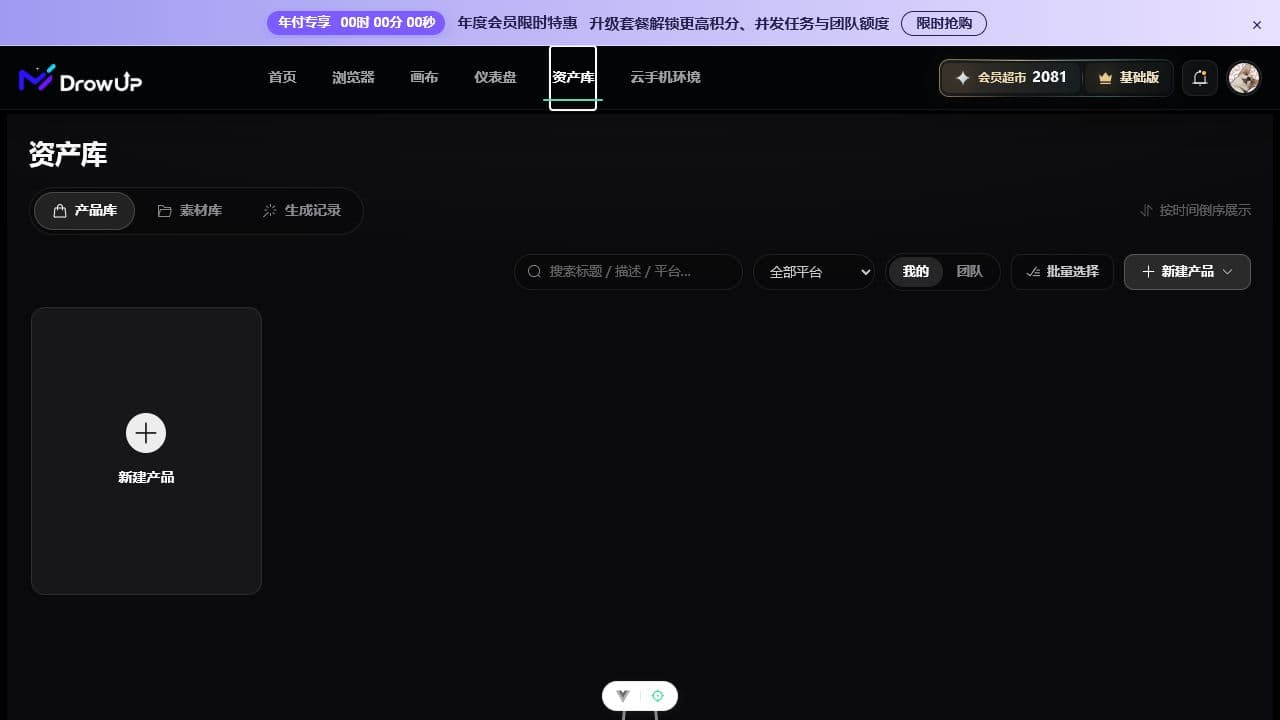
Add your first product
- Open Asset Library from the top navigation.
- Select Product Library.
- Select New Product.
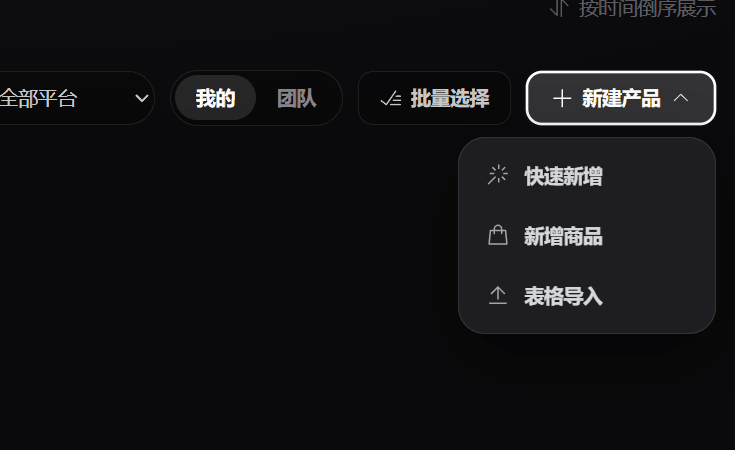
- Quick Add is the easiest first choice.
- Add Product is for a more complete product record.
- Spreadsheet Import is for an existing list of products.
Use Quick Add
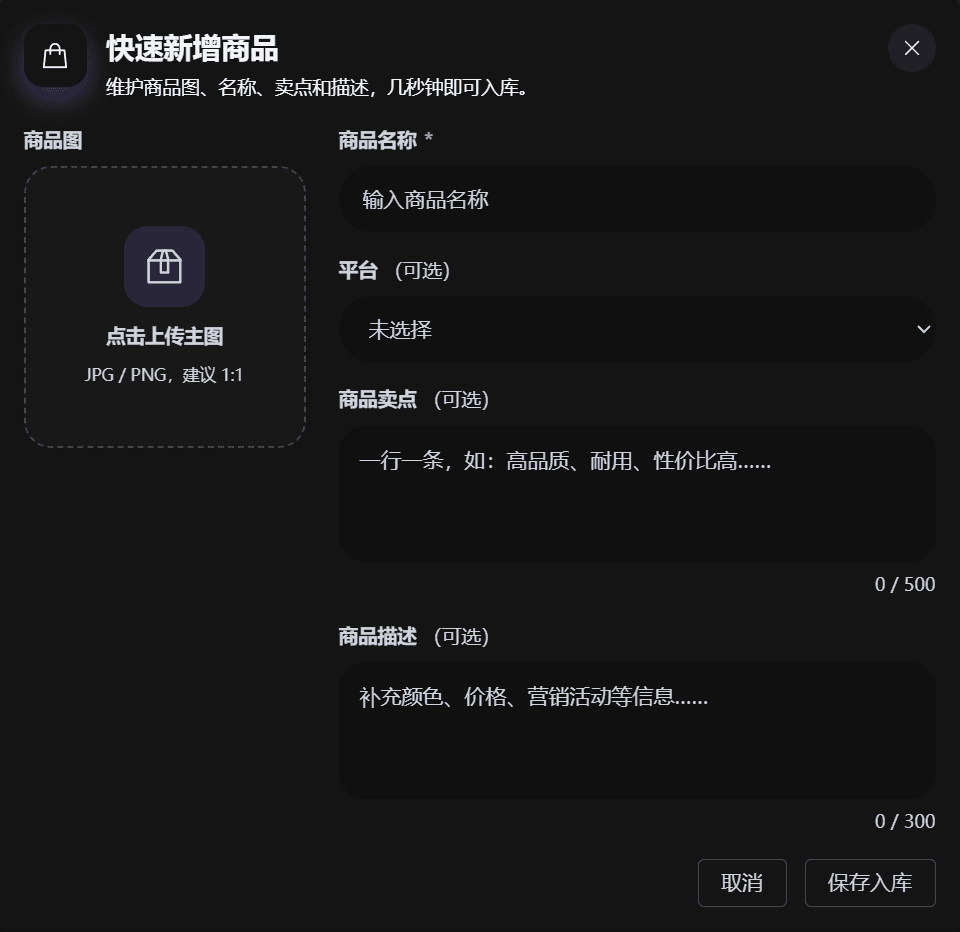
- Upload one clear square product image.
- Enter a product name. This is the only required text field.
- Select the platform when you already know it.
- Add one selling point per line, or leave the optional fields empty for now.
- Select Save to Library, then confirm that the product card appears.
Use a name that you will recognize later. You can complete more fields before a real store job requires them.
Personal and team products
Use Mine for your own products. Use Team when the product should be available to the team and your account has the required access. Check the selected area before editing or deleting a product.
What happens next
Once a product is in the library, you can import it into a Product node on the Canvas. You can also select products in the library and start a product workflow for repeated image or content work.
One record, many jobs
Keep the original product record clean. When you want to test a major change, use Save as New Product from the Product node so the original remains available.