 Agent Guide
First conversation
Add a model API key, choose a workspace, and send the first commerce example.
After you install the client and sign in, send the first message. This page uses the first commerce scenario: ask the Agent how to start listing a product to a store. Once the key and workspace work, continue in Start your first listing task and finish that same scenario.
Your DrowUp account is for sign-in, credits, and markets. The model API key is for calling a model. You need both.
This page
| Step | Action | Done when |
|---|---|---|
| 1 | Add a model API key | Settings → Models shows the provider as configured |
| 2 | Choose a workspace | The composer at the bottom accepts input |
| 3 | Send the first commerce example | A reply appears and tells you how to start listing |
Keep keys on this machine
Do not share an API key, and do not paste it into the conversation. After you save it, the page shows a configured state and never redisplays the full key.
1. Add an API key
- Open Settings at the bottom of the sidebar, then Models.
- Paste your API key into a provider card on the Models page and save. DeepSeek is commonly listed there; to use another model, choose Add provider.
You do not need to restart the client. The key is used on the next request.
Screenshot: Settings → Models, a provider key field, and the configured state after save.
If the composer asks you to select a model, pick a configured model from the session model picker.
2. Choose a workspace
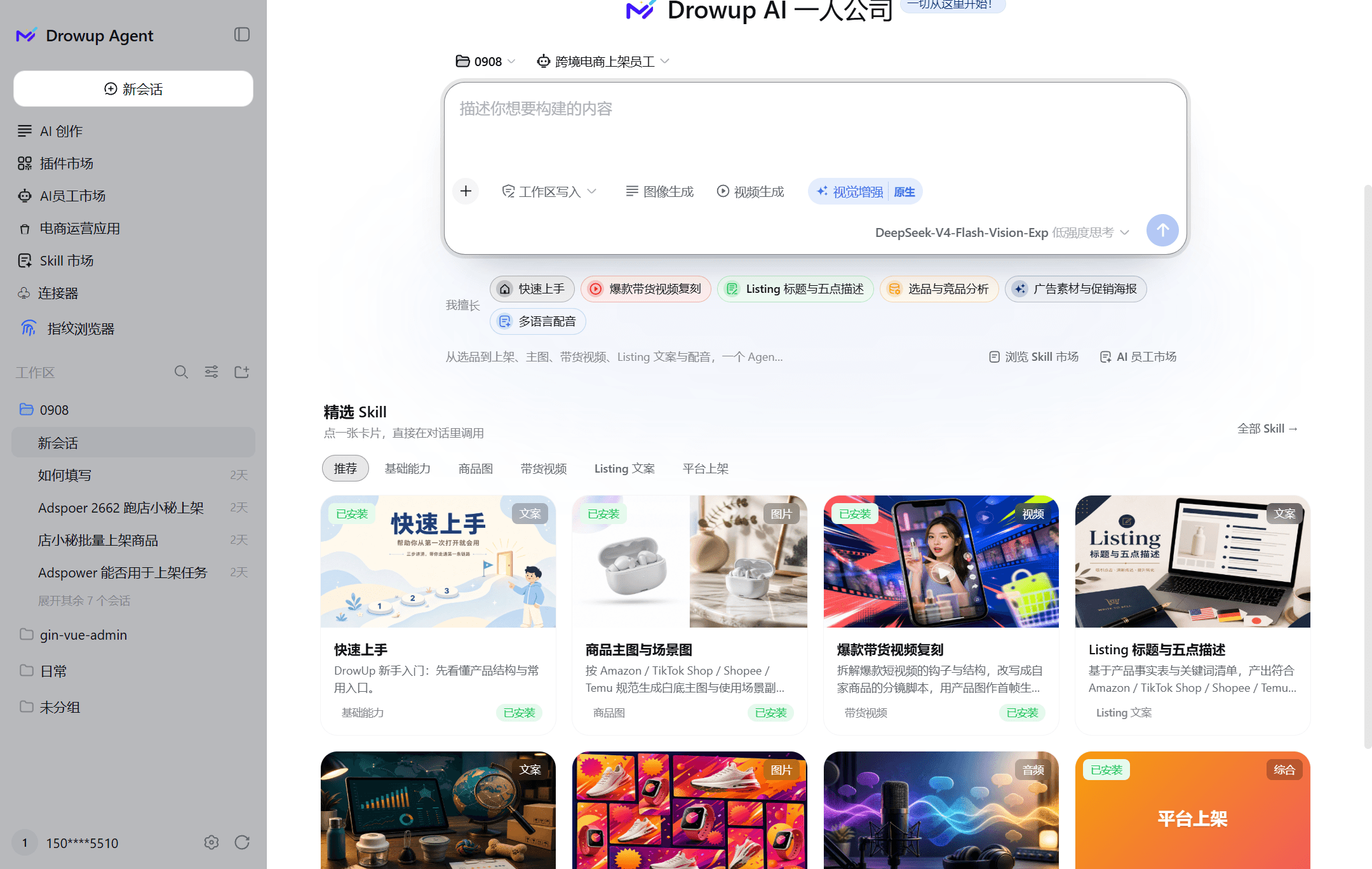
A workspace is a folder on this computer. The Agent reads files, writes results, and runs tasks inside that directory. The composer stays unavailable until a workspace is selected.
- Click Choose workspace in the main view, or Add workspace in the sidebar.
- Pick a local folder. For the first run, an empty folder or a folder with a few files is enough.
- Confirm that workspace is the active one.
3. Send the first commerce example
Paste the block below into the composer and press Enter. This is the first message, and it is the same scenario you will finish on the next page.
Do not change any files. In three sentences, tell me what you can help with right now, and how I should start if I want to list a product to a store next.Follow the order in the reply. Next we walk you through that same scenario until one product is saved as a draft.
Screenshot: the composer with the example pasted, the selected workspace name, and the first reply in the session.
To check that tools work first, you can send:
List the first 10 files in the current workspace. Names only. Do not change any files.After that reply lands, send the commerce example above.
If the reply fails:
- Missing credential or auth error: go back to step 1 and save the key again
- Composer still unavailable: go back to step 2 and confirm a workspace is selected
- Prompt to select a model: pick a configured model in the model picker
Completion check
- The Models page shows the key as configured
- A workspace is selected and the composer accepts input
- The first commerce example received a reply
Next: open Start your first listing task and use this example to list the first product as a draft.