 Agent Guide
Start your first listing task
Walk through the first commerce example until one product is listed as a draft.
In First conversation you already asked how to start listing a product. This page finishes the same job with one common example: save one product from the catalog as a draft.
Names of employees, Skills, and platforms below are for you to follow along. The markets have more options — install what matches your store. This is not the only path. Do not publish on the first run.
Before you start, complete:
- Install and sign-in from Quick Start
- First conversation (the first commerce example already sent)
- A team selected from the avatar at the bottom left
The example this page completes
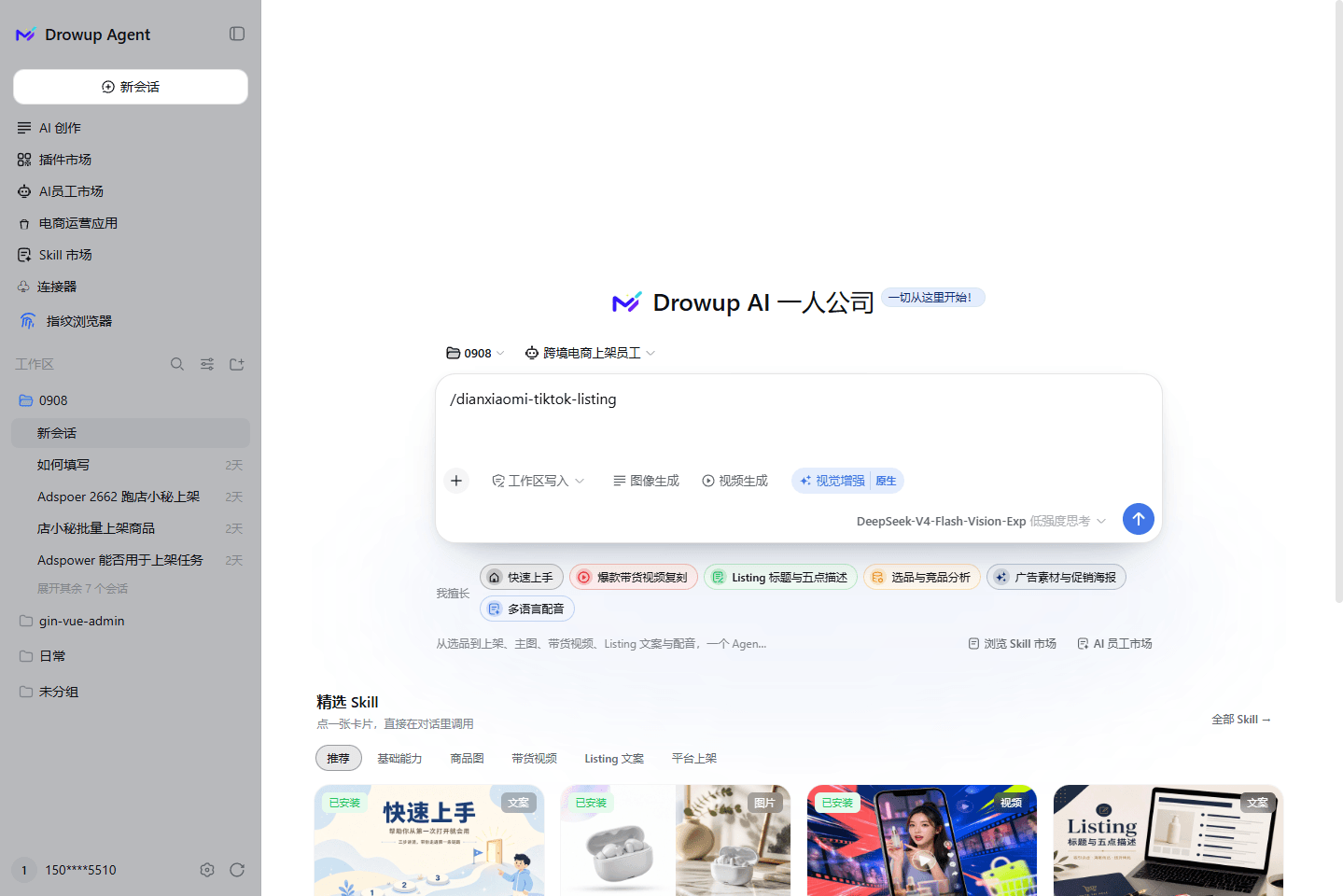
Replace “Product name” with the catalog item, then send this to a new session with the Cross-border listing employee:
Use the cross-border listing employee. List “Product name” from the product library to Dianxiaomi TikTok Shop as a draft, using the local browser. Do not publish.The steps below exist to make that one prompt succeed. Taobao and fingerprint environments are not required the first time; replacement wording is at the end.
Save as draft the first time
Unless you explicitly say “publish”, keep the run as a draft. Sign in to the store only in the browser window used for listing. Do not send passwords or verification codes to the Agent.
1. Install the listing employee
This example should run on a listing employee. Do not continue the generic first-conversation session. The steps below use Cross-border listing employee as the example; the name in your client is whatever the employee market currently lists.
- Open the sidebar AI employee market and install Cross-border listing employee.
- Open the employee card and complete runtime setup as prompted.
- Confirm the card is ready. Do not send the listing prompt yet — you still need the backend, a product, and the Skill.
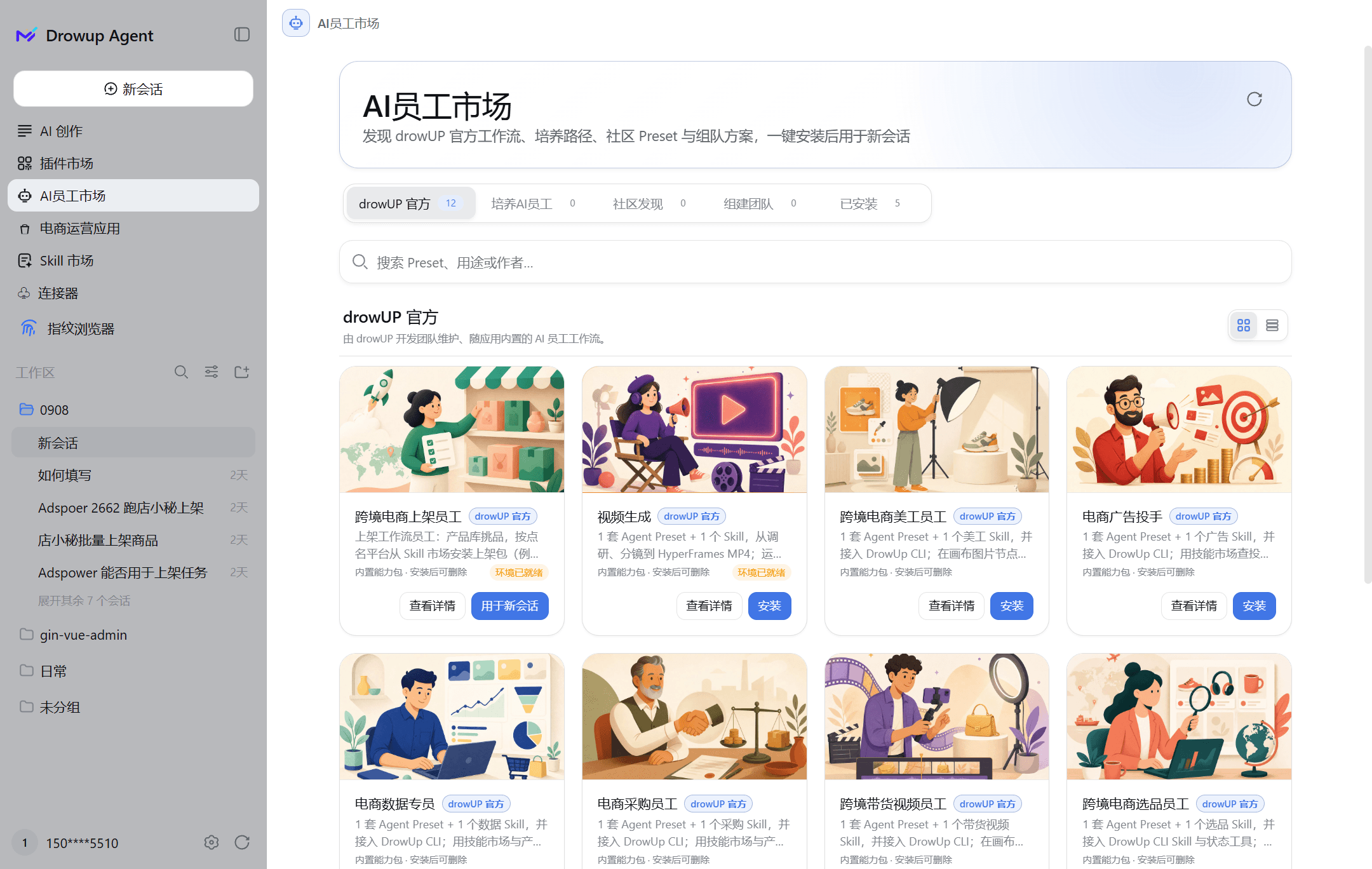
Team selection stays on the bottom-left avatar. Sign in to the store in the browser window you open yourself.
2. Sign in to Dianxiaomi
This example uses TikTok Shop on Dianxiaomi. Open dianxiaomi.com in the local browser and sign in. If you are not signed in, the task waits in that window. If your backend is different, open the login page you actually use.
A fingerprint environment is optional. Use it when you manage multiple stores or need account isolation. You can also install other plugins you already use from the plugin market.
Optional: switch to a fingerprint environment
- Open the sidebar plugin market and install Fingerprint browser.
- Create environment, open it, and sign in to Dianxiaomi in the window.
- If you switch, replace “using the local browser” in the example with “using environment ‘Environment name’”.
Environments live under Fingerprint browser in the left sidebar, presented as a table listing name, ID, IP, tags, group, account platform and last opened, with seat usage in the top right.
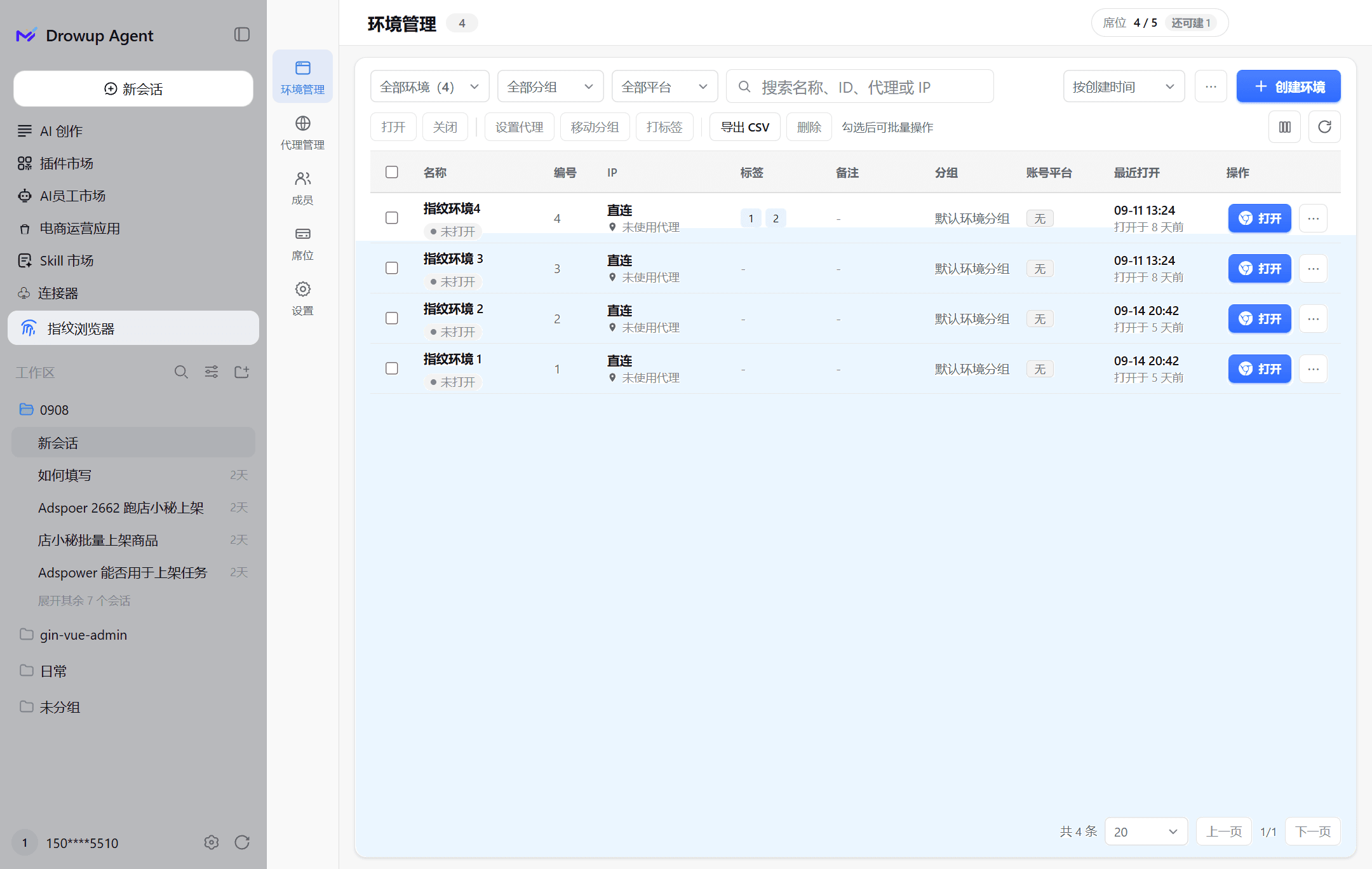
Proxies, members, seats and settings sit in sub-pages on the left; selecting environments enables bulk open, close, set proxy, move group, tag or export CSV.
Use Create environment in the top right and fill in the basics: the name is required, the default platform offers Temu, Amazon, Shopee and others, and the browser core and OS version can stay at their defaults.
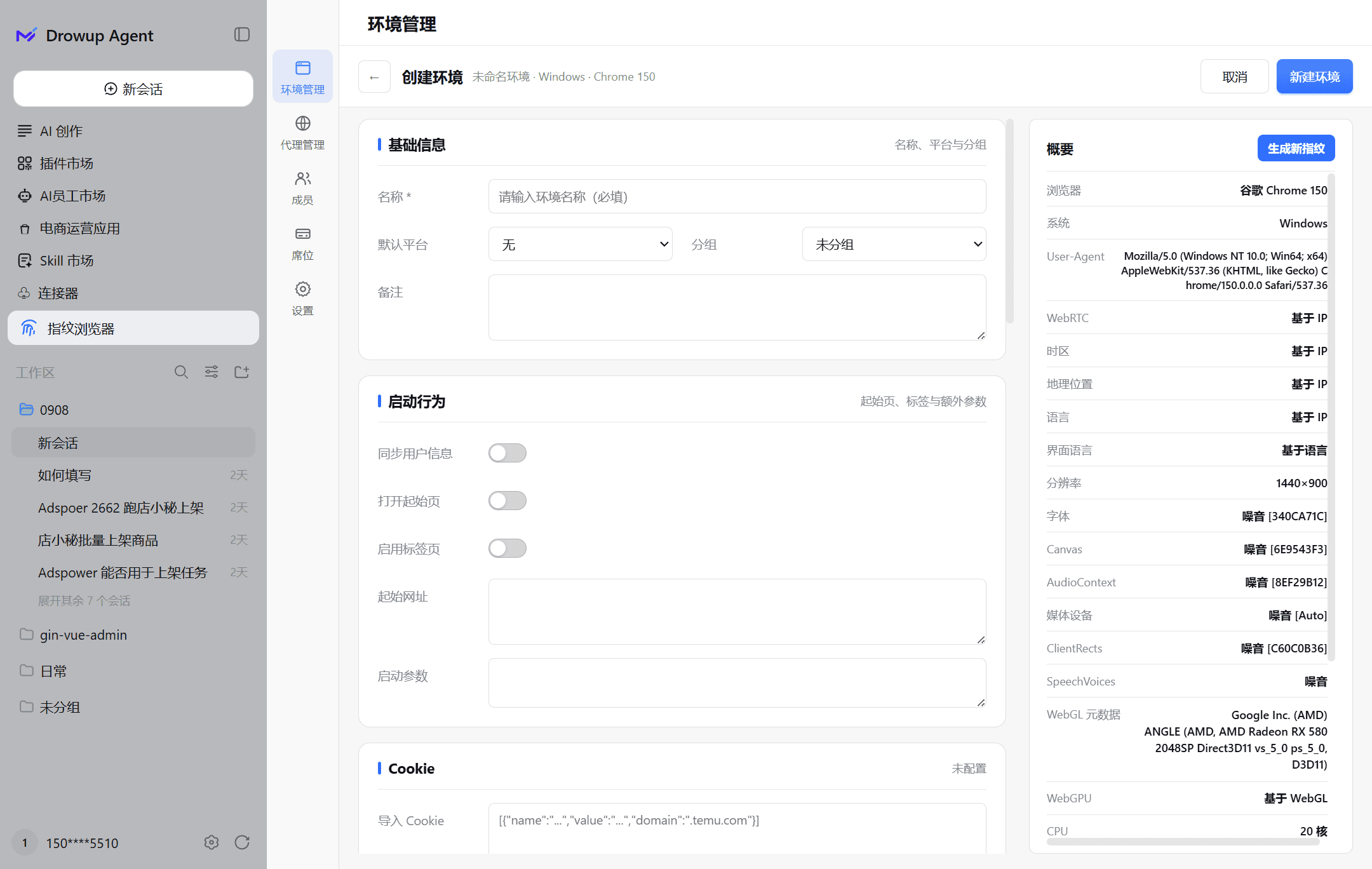
Only a few fields matter on a first run; leave the rest at their defaults:
| Field | Suggestion |
|---|---|
| Name | Something recognisable such as the store name, up to 100 characters. This is the name you put in “using environment ‘…’” |
| Group / default platform | Useful for sorting multiple stores; leave empty for one |
| Browser core / OS version | Chrome on Windows 11 by default; the user agent is generated to match, so do not edit it by hand |
| Open start page | On by default, so the environment lands on the target backend |
| Notes | Account purpose or proxy vendor, up to 1500 characters |
The environment ID is assigned on save. Open the new environment and sign in to Dianxiaomi inside it. Group and platform filters help once you run several.
Screenshot: a signed-in Dianxiaomi backend.
3. Prepare the product named in the example
The “Product name” in the example must exist in the product library.
- Open the product library and click Add product. Fill in at least a title. Main images help. If you need images, install a creative plugin from the plugin market, generate them, then write the title, price, stock, and images into a catalog item.
- Copy that title into the example later.
Screenshot: the newly added catalog item with a title.
You can generate images first, then write them into a catalog item. Images made from the command line do not become a catalog row automatically.
4. Install the Skill this scenario needs
This example needs a listing Skill for your platform. Open the Skill market, pick one that matches your backend and platform, and install it for this listing employee (not only for a generic session). The steps below use Dianxiaomi listing · TikTok Shop as the example; the name in the market is whatever the current list shows.
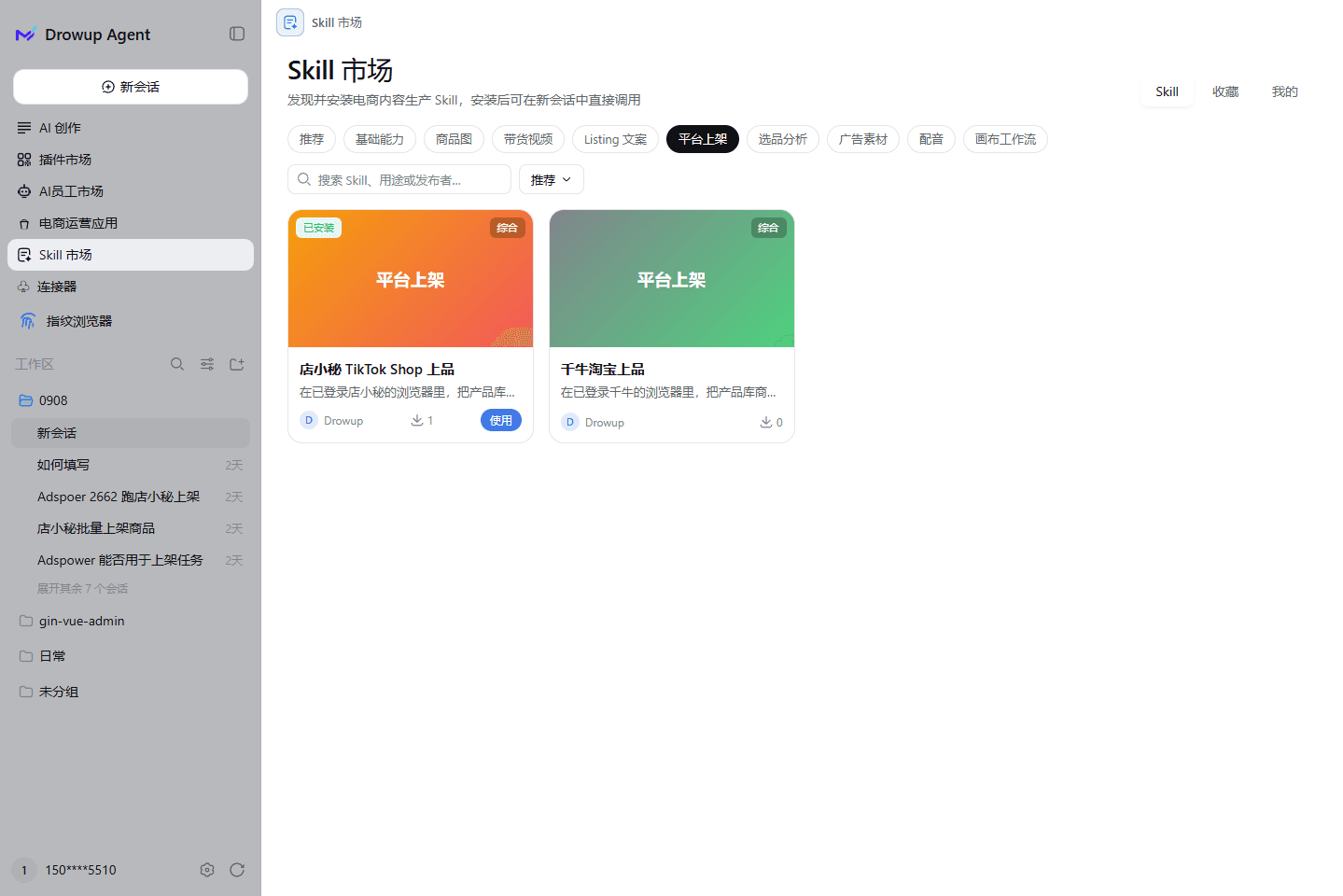
After install, start a new session with that employee, then send the example at the top of this page.
5. Send the example and check the draft
- Create a new session with the Cross-border listing employee.
- Paste the example from the top of this page. Change only “Product name”.
- When the employee lists the parameters it will use, confirm draft, local browser, and Dianxiaomi TikTok Shop, then let it run.
Open the Dianxiaomi draft box and confirm the title and images are acceptable, the status is draft, and the item is not live.
If the run fails:
- Not signed in: sign in to Dianxiaomi in the local or fingerprint window, then continue as the employee prompts
- Missing Skill: go back to step 4, install that Skill on the listing employee, and start a new session
- No product: go back to step 3 and make sure the catalog title matches the example
- Category or attributes incomplete: edit the draft, or rerun the same example with values from the receipt
Finish this example first
The first run is this one prompt: one product, draft, Dianxiaomi TikTok Shop. Change platform or publish only after it works.
Completion check
- You sent this page’s example in a new Cross-border listing employee session
- Dianxiaomi shows the matching draft
Next: run the same approach with a second product; or open the Skill market, install the platform you actually use on this employee, and run again.
If you already switched to a fingerprint environment:
Use the cross-border listing employee. List “Product name” from the product library to Dianxiaomi TikTok Shop as a draft, using environment “Environment name”. Do not publish.If the first scenario is Taobao:
Use the cross-border listing employee. List “Product name” from the product library to Qianniu Taobao as a draft, using the local browser. Do not publish.