 Agent Guide
Employees
Choose a role, prepare its tools, and verify a task in a new employee conversation.
An employee is an Agent configured for a role. The employee determines who handles the job; a Skill defines the procedure; plugins and connectors provide tools. Installing an employee does not sign you into a store or satisfy every dependency.
Before you start
Complete your first conversation. Check your account, model, workspace and current team. For product tasks, identify the product by ID or SKU and decide whether you permit inspection, editing, draft saving or submission.
1. Choose and install a role
Open AI employee market from the left sidebar. It is grouped into drowUP official, trained employees, community, teams and installed. Each card states how many Skills the role bundles and whether it hooks into the CLI, with Details and Install buttons; installed roles show Use in new conversation.
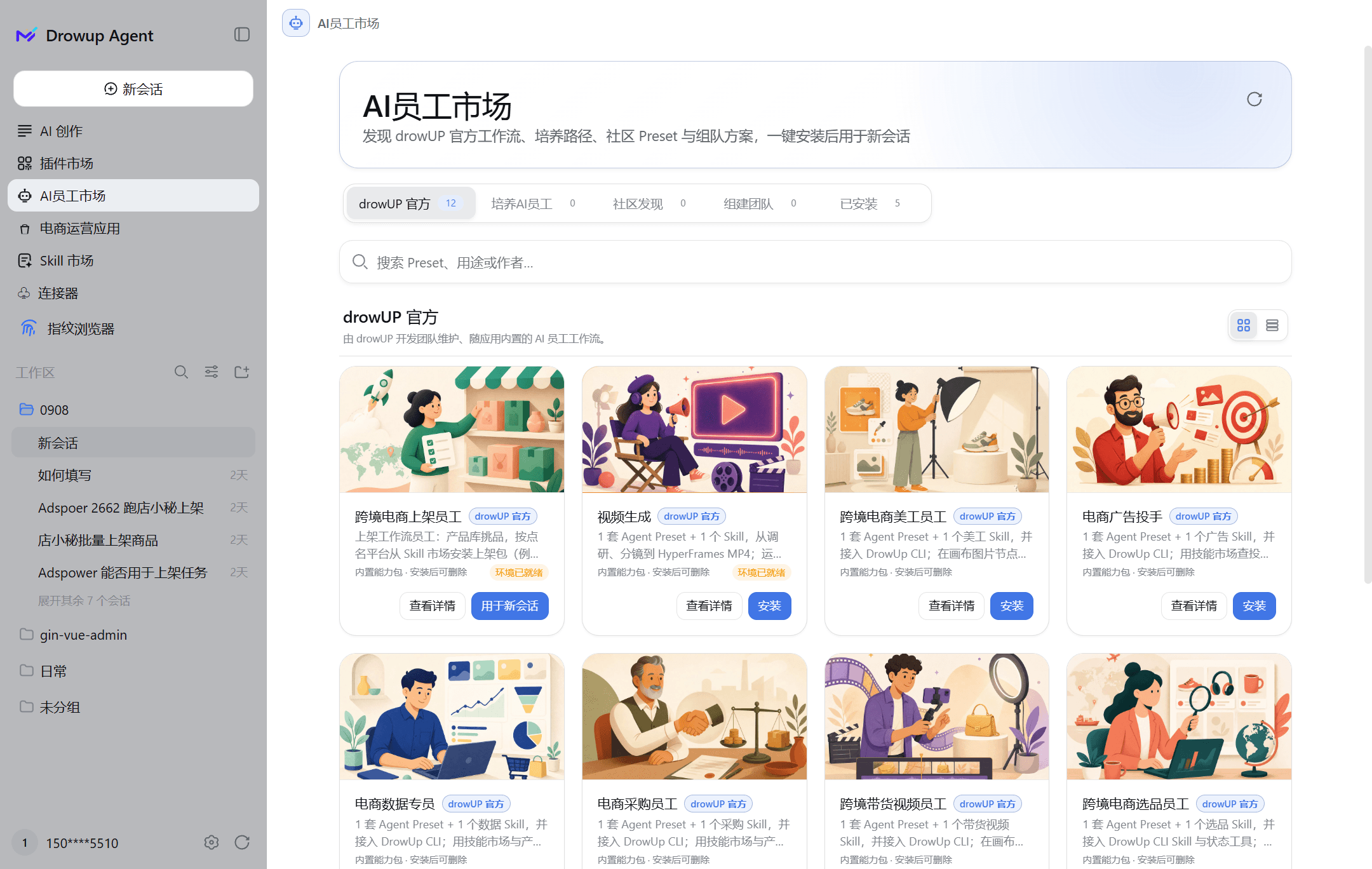
Open AI Employee Market. Read the employee's responsibilities, prerequisites and required capabilities before installing. Available roles are determined by the current market, not a fixed list in this guide. Confirm the employee appears in the installed list.
2. Complete the prerequisites
| Check | What to confirm |
|---|---|
| Product | A unique product in the correct team's library |
| Procedure | A Skill matching the actual platform and backend |
| Browser | The intended local browser or named environment, signed into the correct store |
| External tools | Required plugins available; connectors authorized and enabled |
Sign into stores in their browser windows. Enter service credentials in the appropriate authorization fields, never in a task conversation.
3. Start a new employee conversation
Create a new conversation with that employee, particularly after adding Skills. Use a bounded request such as:
Inspect product SKU "MY-SKU" in the current team's product library.
The target is "MY-PLATFORM", using browser environment "MY-ENVIRONMENT".
First list missing information and planned changes. Do not save, submit,
publish, or enable paid promotions. Ask if multiple products match.
This is a request template, not an executed result. Continue only after confirming the product, store and allowed actions. A Skill that stops before submission must not be treated as supporting draft saving or publication.
4. Verify the deliverable
Check the resulting files, field readbacks or backend records. Confirm which product was processed, which steps completed, what changed and what still needs review. A message saying “done” is not sufficient evidence of a saved draft or published listing.
Troubleshooting
| Symptom | First check |
|---|---|
| Installed but cannot run | Employee prerequisites, model and tool readiness |
| Skill unavailable | Installation scope and a new employee conversation |
| Product not found | Team, product ID/SKU and permissions |
| Wrong store selected | Stop and verify the environment and signed-in account before retrying |
Next: Skills · Product library · Your first listing task