 Agent Guide
Plugins
Install only the tools a task needs, then check dependencies and authorization.
Plugins provide tools or feature entry points for the Agent. Install capabilities for the task at hand rather than everything in the market. Available tools and labels depend on the current client.
Understand the layers
| Layer | Purpose | Does not imply |
|---|---|---|
| Plugin | Adds a tool or feature entry point | A third-party account is authorized |
| Connector | Connects an external tool service | Every business operation has write permission |
| Skill | Organizes a reusable procedure | Its dependencies are installed |
Employees use these capabilities for their roles. Reinstalling an employee is not a substitute for fixing a missing tool.
1. Work backward from the task
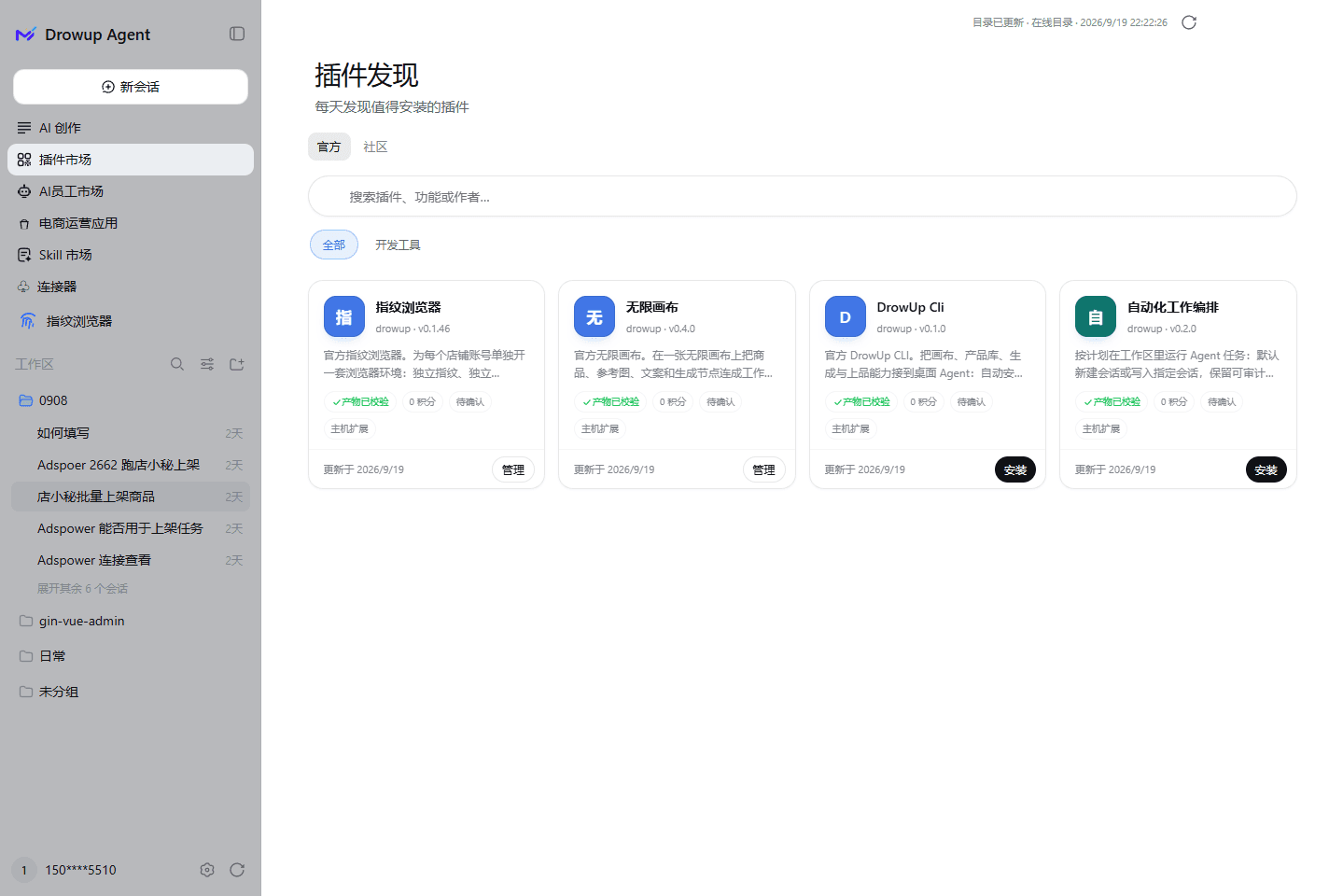
Open Plugin market from the left sidebar; the header shows when the catalogue was last refreshed, and entries are grouped by source such as official and community.
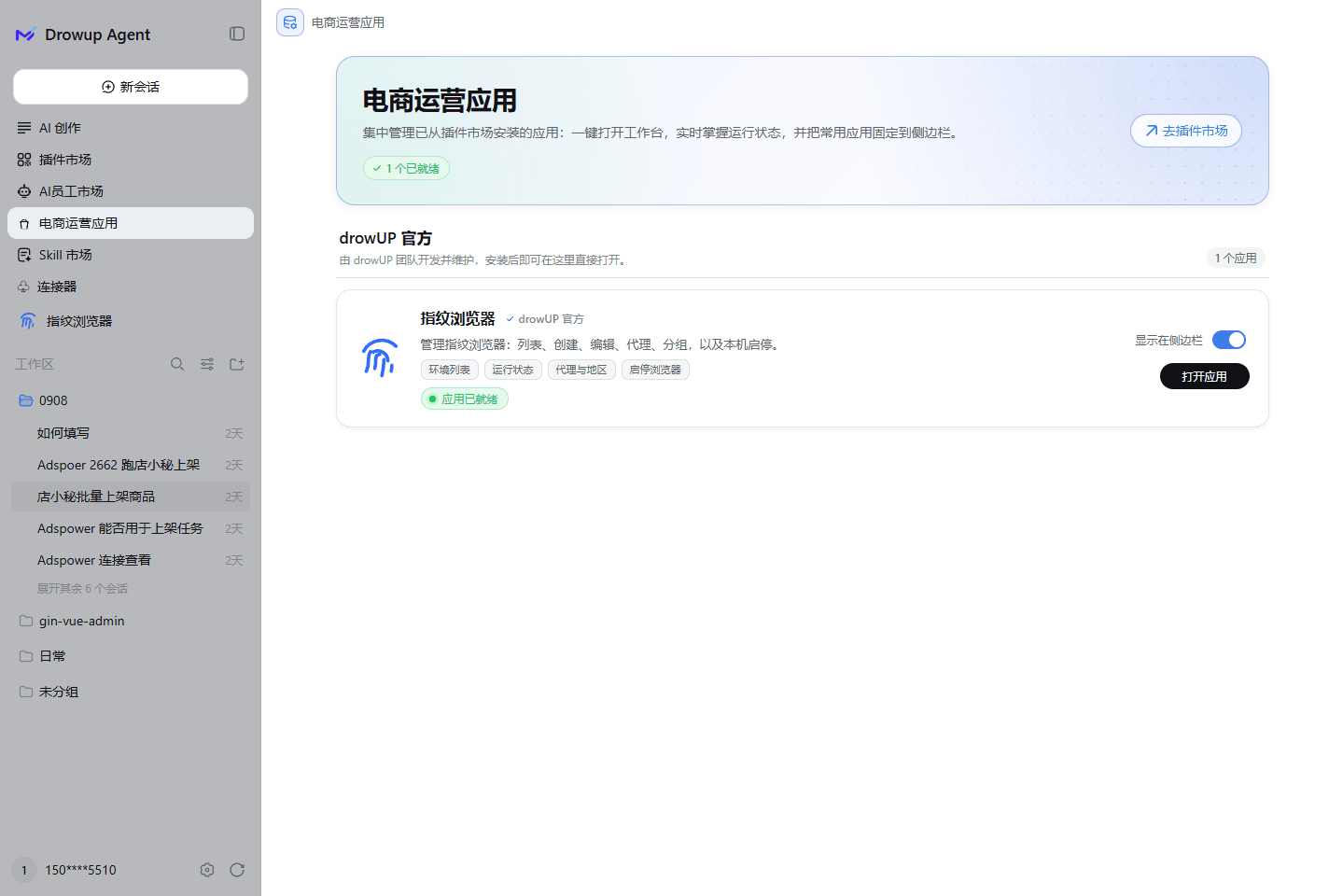
Installed plugins are managed together under Commerce apps, where you can open a workspace, watch run status and pin the ones you use most.
Identify the inputs and outputs. Preparing a listing may require product access, browser access and a platform Skill; generating a main image needs a compatible creative capability. Read descriptions, versions and permissions in Plugin Market before installing.
A fingerprint browser is not required for every task. Configure an isolated environment when the account-isolation scenario calls for it.
2. Check installation and readiness
Confirm the plugin in the installed list and follow its dependency instructions. Plugins with a page can be opened from their entry points; other capabilities are primarily called by the Agent. The presence of a new sidebar button is not the only readiness check.
Keep the desktop client, browser or local service running when the selected capability depends on it.
3. Authorize separately
Installing a plugin, signing into DrowUp and signing into a store are separate actions. Follow the plugin's instructions or configure a connector. Grant the minimum permissions needed and keep credentials out of conversations and shared screenshots.
4. Start with a read-only task
Check that the tools required for this task are available.
Only read the product list and identify the current team and matching product.
Do not create, modify or delete anything. Name any missing dependency,
authorization or environment explicitly.
A successful check does not authorize later edits or publication.
Troubleshooting and maintenance
| Symptom | First check |
|---|---|
| Tool unavailable after installation | Readiness, dependency services and conversation configuration |
| Plugin opens but cannot read data | Account, team, external authorization and permissions |
| Local capability stops | Desktop, browser or required service availability |
| Procedure fails after an update | Plugin and Skill compatibility |
Before disabling, uninstalling or updating, check for running tasks that depend on the plugin. Installation costs, third-party subscriptions and execution charges are separate.
Next: Connectors · Infinite canvas · Product library