 DrowUp Guide
Fingerprint Browser
Create a dedicated desktop browser environment for a store and use it consistently.
A fingerprint browser environment keeps a store's browser setup in one place. Treat each environment like a dedicated work computer for one store.
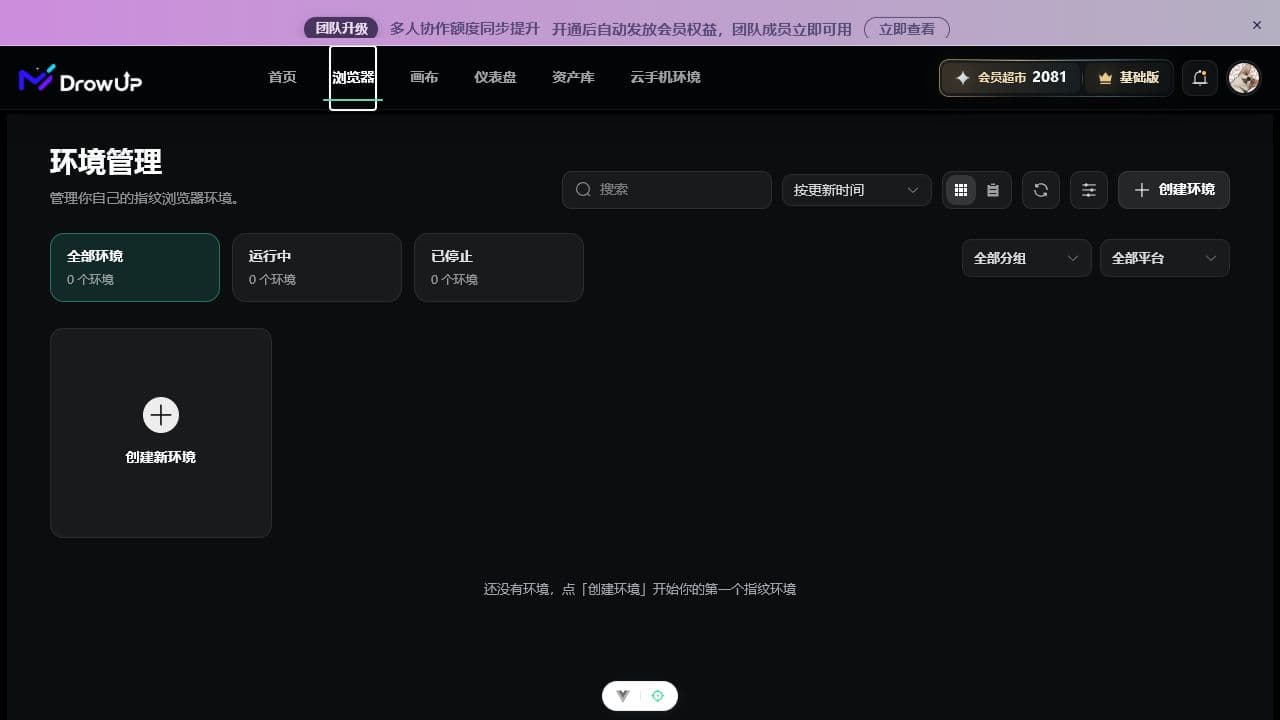
Create an environment
- Open Browser from the top navigation.
- Select Create Environment.
- Give the environment a name that includes the store and platform.
- Keep the default browser, system, and fingerprint settings for the first environment.
- Add the intended proxy when your operating setup requires one.
- Save the environment, then confirm it appears in the environment list.
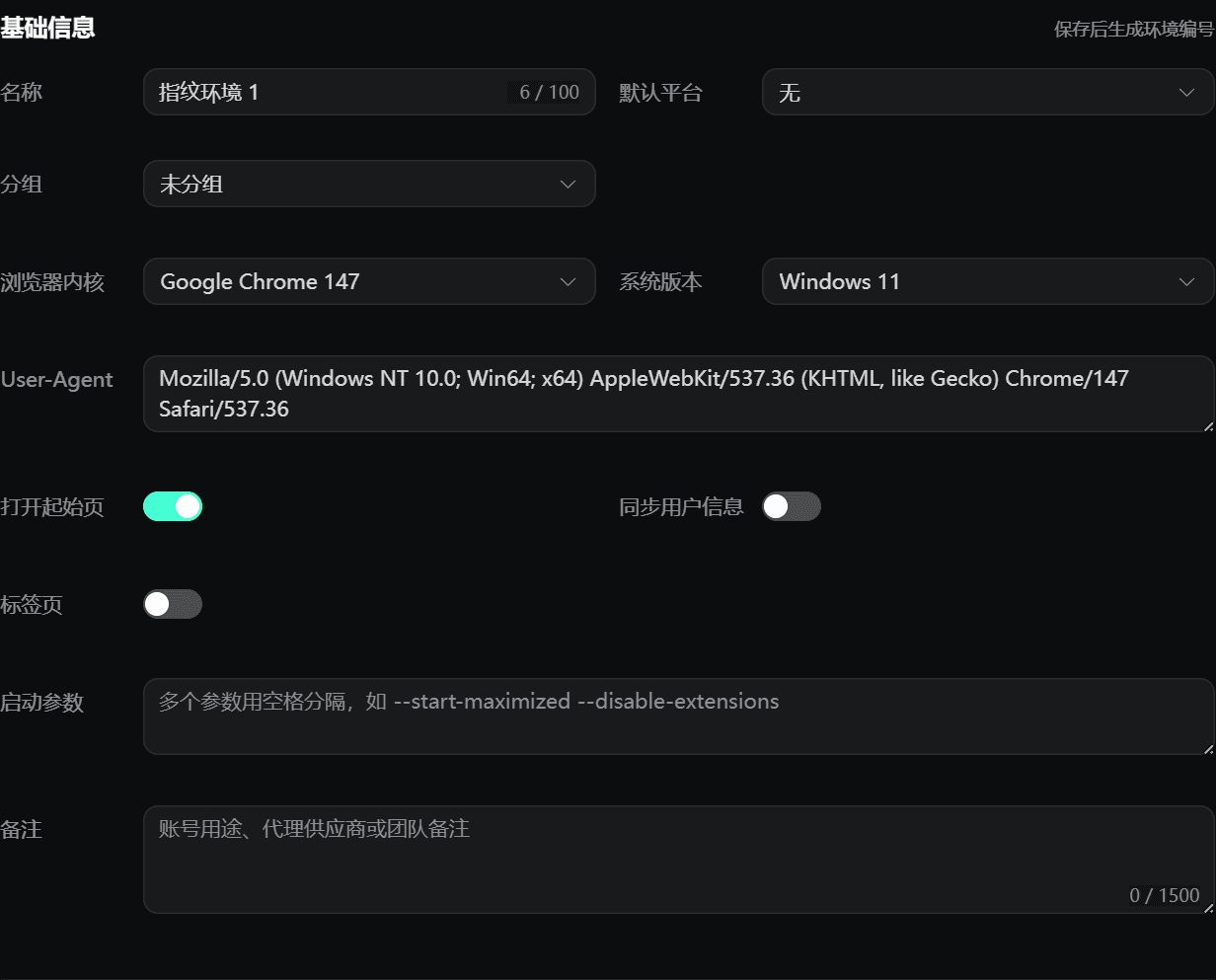
For the first environment, focus on a clear name. Do not change the User-Agent, launch arguments, or advanced fingerprint settings without a specific reason.
Use one store in one environment
Keep a fixed relationship between a store and its environment. Do not sign several unrelated stores into the same environment just because it is already open. A name such as Amazon - Store A is easier to manage than Browser 1.
The environment must be started from the DrowUp desktop client. On first use, the client may need time to prepare the browser engine. Once the browser opens, sign in to the intended store and keep that account in the same environment for later work.
Risk still exists
A fingerprint environment helps keep browser setups separate. It cannot guarantee that accounts will never be linked, reviewed, limited, or suspended. Follow each platform's rules and your own account security process.
Before using RPA
Confirm that the correct store is signed in, the environment opens normally, and the target page is reachable. Run a manual check before assigning automation to a new environment.
Next: Run your first RPA task.