 DrowUp Guide
Install and Sign In
Download the Windows desktop client, sign in with your DrowUp account, and confirm that it is ready.
DrowUp can be opened on the web or installed as a desktop client. You can learn the Asset Library and Canvas in the web app. Keep the desktop client open when you start a fingerprint browser or run an RPA task.
Download the Windows client
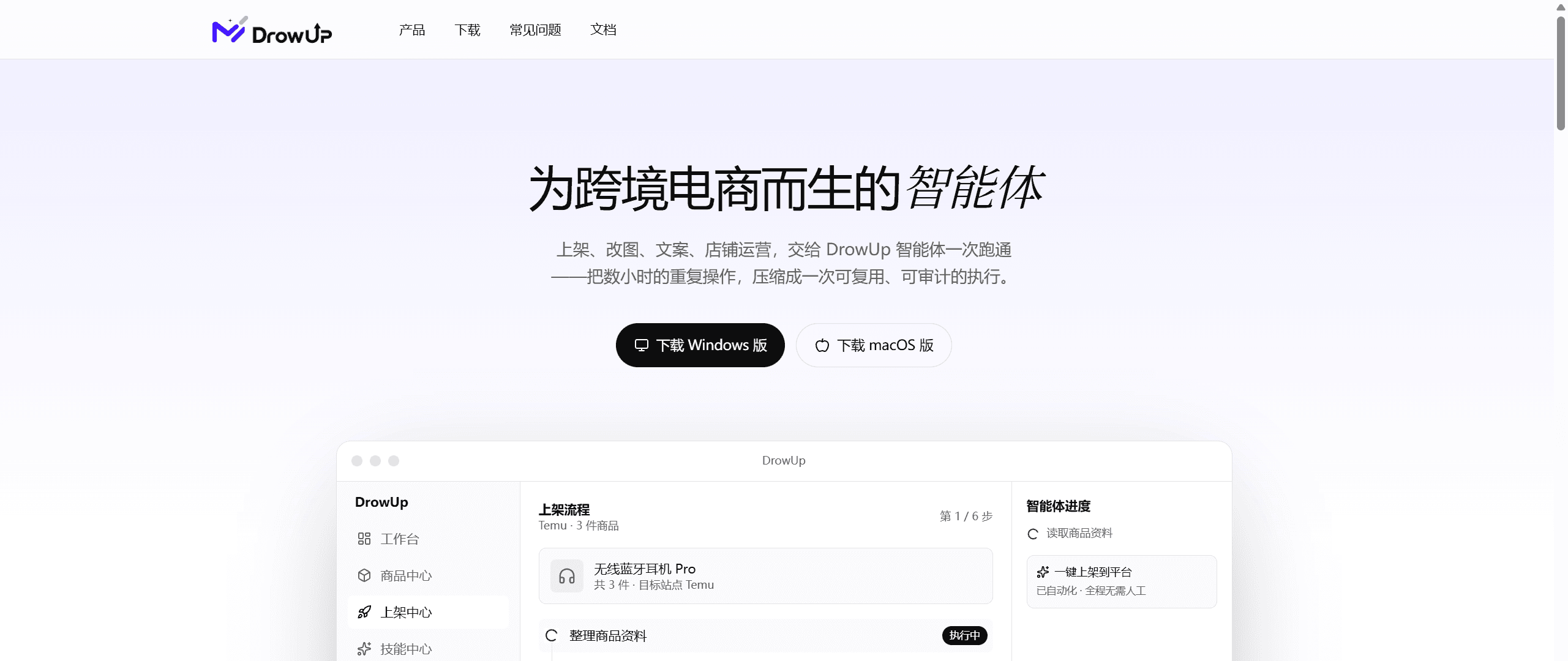
Select Download for Windows on the DrowUp website. The macOS button is currently a preview entry.
- Select Download for Windows on the official DrowUp website.
- When the download starts, find the installer in your browser's download list.
- Open the installer and follow the installation steps.
- Start DrowUp after installation finishes.
Use the official download
Do not install a copy from an unknown website, shared drive, or chat message. Return to the DrowUp website when you are unsure where an installer came from.
Sign in to an existing account
On the Account Sign In tab:
- Enter your username or email address.
- Enter your password.
- Enter the image code when one is shown.
- Select Start Your Journey.
The web app and desktop client use the same DrowUp account. You do not need to register twice.
Create an account
Open the Register tab and enter a username, email address, display name, and password twice. Registration creates a default team and starts the available trial plan and basic quota.
After registration, return to Account Sign In and sign in with the new username or email address.
When the desktop client is required
- You can first learn products, materials, and canvases in the web app.
- Creating or starting a fingerprint environment, testing a proxy, and running RPA require the desktop client.
- Closing the client during an RPA run can stop the browser work on your computer.
Ready check
You are ready when:
- the Workbench, Asset Library, or Canvas opens normally;
- the web app and desktop client show the same account;
- the desktop client stays open before you begin browser or RPA work.